
Live context
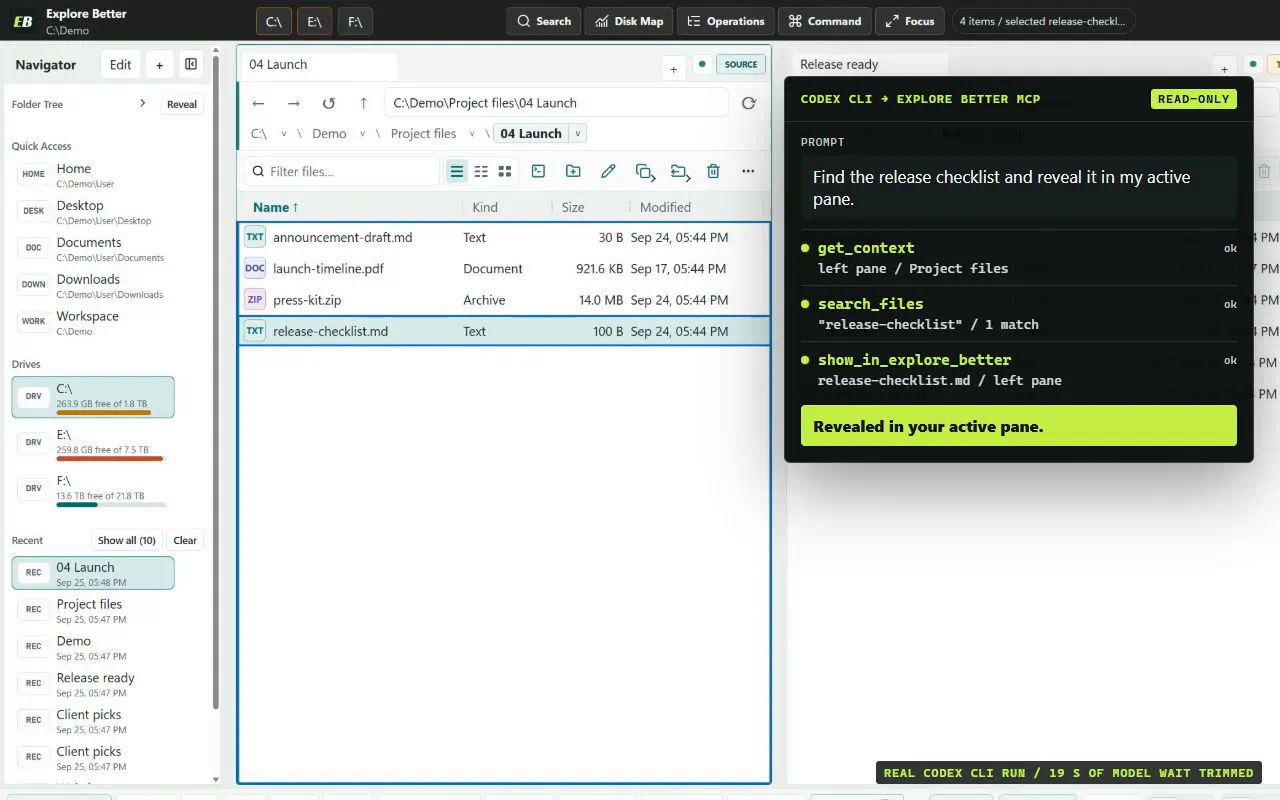
Read the active pane, tabs, selection, focus, layout, and context revision when the desktop window is open.
Claude receives typed file entries, current pane context, durable jobs, and explicit operation plans instead of brittle command output.
The desktop app creates the profile first, so credentials and authorized roots never need to appear in a public URL or copied command.
The client sees a stable, bounded tool model rather than a general-purpose shell.
Read the active pane, tabs, selection, focus, layout, and context revision when the desktop window is open.
Page directories, query persistent indexes, inspect metadata, read bounded text, and compute checksums.
Run analysis jobs or preview a file change, apply it through the transactional queue, and monitor or undo the result.
Open a folder in Explore Better, select a few files, then ask the client to inspect the current context and identify the largest selected item without modifying anything.
Use Explore Better's get_context tool.
Inspect the visible selection.
Return the largest item and explain which structured fields support the answer.
Do not modify any files.